What we need you to send us:
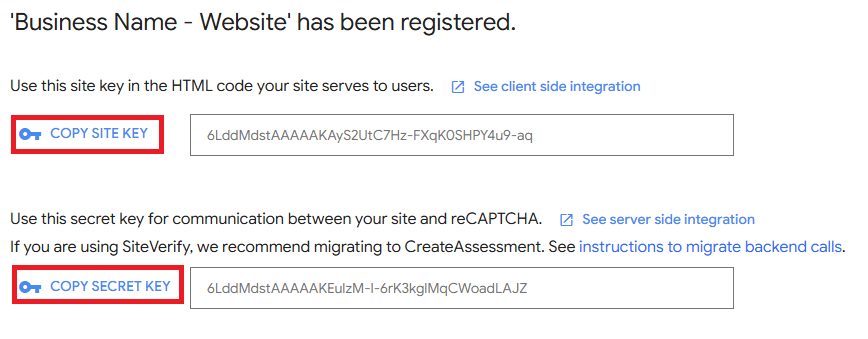
We need you to send us two codes – a Site Key (public) and a Secret Key (private). We use these to switch on spam protection for the contact, booking or order forms on your website.
What you’ll need:
You’ll need a Google account – Gmail or Google Workspace – and your website address. If your company has a shared Google account, please use that rather than a personal one, so access isn’t lost if someone leaves.
If you don’t have a Google account, you can create one here.
How long it takes:
About 10 minutes.
Here’s what to do:
1. Sign in to Google
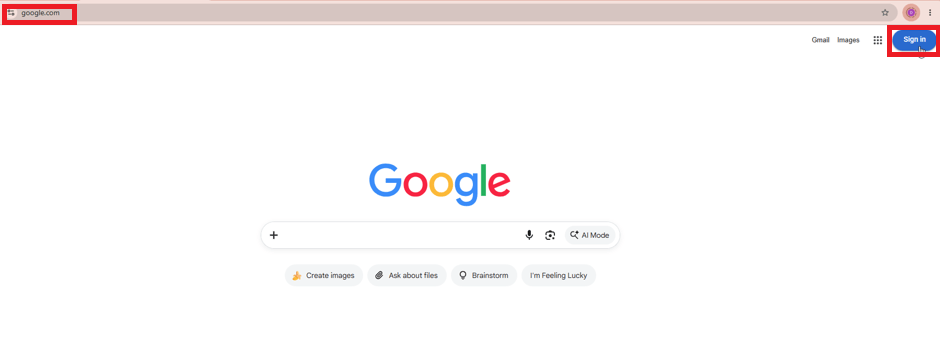
Go to google.com and sign in. If you’re already signed in to a different account, click your profile picture in the top right and switch to the correct one.
2. Open the reCAPTCHA admin page
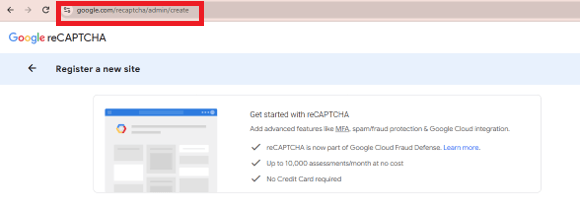
Go to the Google reCAPTCHA admin page
You may be asked to accept the terms of service and tick a checkbox. Tick the box, choose your country if asked, and continue.
3. Create the keys
Fill in the boxes as follows:
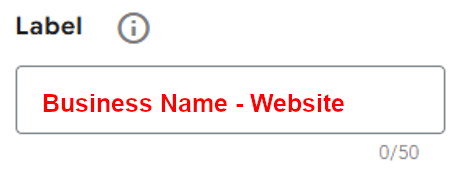
Label – add a meaningful name in this box, so you know what it is for in the future. For example:
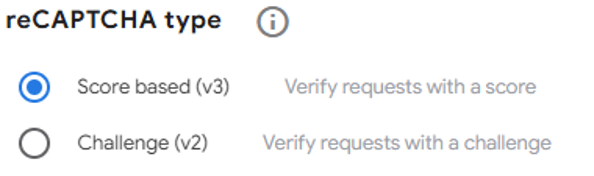
reCAPTCHA type – leave this set to Score based (v3) as shown:
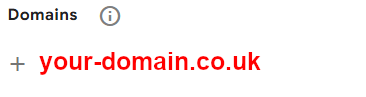
Domains – click next to the + and enter your domain without ‘https://’ or ‘www.’ as shown below:
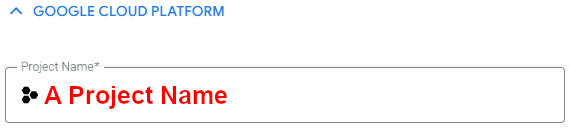
Google Cloud Platform Project Name – give your project a name.
To finish – tick the box to accept the terms of service and click the Submit buttonK


4. Send your site keys to us
Your site keys will now be generated, and you will see a screen like this. Click where it says Copy Secret Key for BOTH keys, paste them into an email and send it to us so we can add them to your website: