Occasionally we might ask you to clear your browser’s cache after changes are made to your site.
Going through this process helps you to see the most up to date version of your site. In order to speed up loading time, your browser will save an older version, which will load much faster. This is updated over time, but might stop you from seeing any new changes that have been made to your site if your browser is still holding onto a new copy.
Click on the icon below to jump to the instructions relevant to your browser.


Microsoft Edge
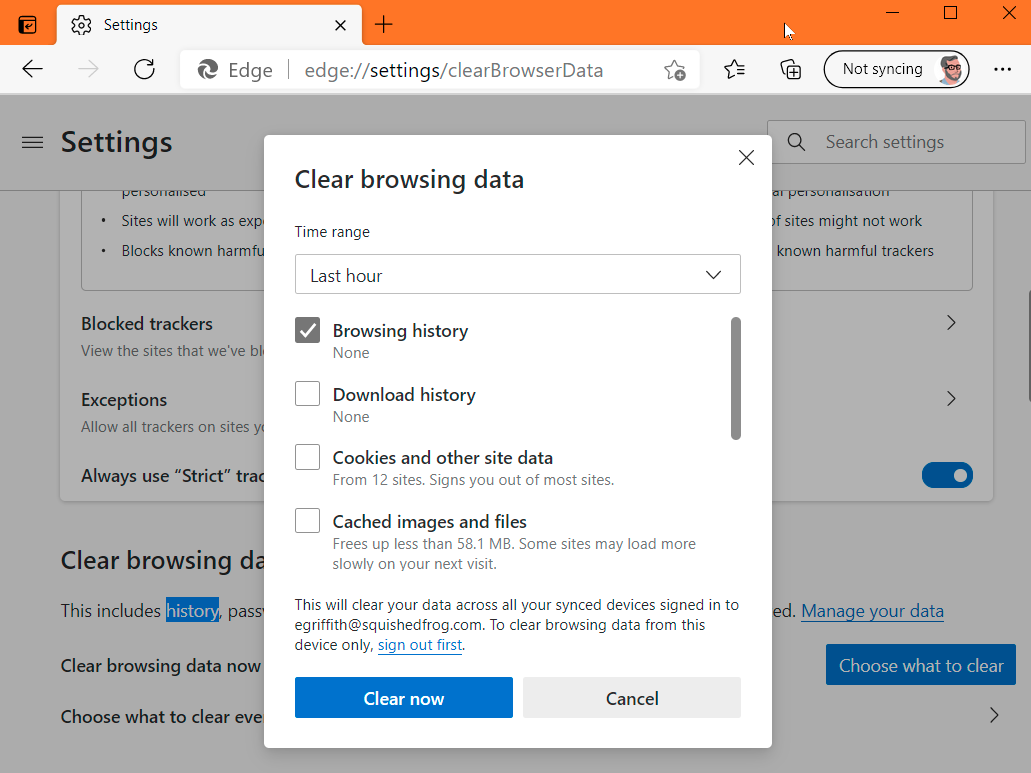
To find your browser history, go to the hamburger menu > Settings > Settings (again) > Privacy, search and services > Clear Browsing Data and click Choose what to clear.
Tick the box against Cached images and files in order to clear your cache.
Internet Explorer (IE)
Please note if you’re still using Internet Explorer, it’s strongly recommended that you switch to, well, any other browser. Internet explorer isn’t supported by Microsoft any more, which means it doesn’t get updated. As a result, IE is a big security risk to your computer, as you have a much greater chance of coming across an infected page, or being at risk from a virus.
Most modern sites don’t set up their websites to work on Internet Explorer either, so you’re missing out on being able to see what everyone else is seeing.
You can click here to download Chrome, or here to download Firefox. Both of these browsers can work on Microsoft computers, or Apple macs, and are among the most commonly used browsers today.
That being said, you can still wipe the history in IE by going to the Gear icon on the upper left and selecting Internet Options. On the General tab, check a box next to Delete browsing history on exit, or click the Delete button to instantly get rid of history, passwords, cookies, cached data (called Temporary Internet files and website files), and more.
Firefox
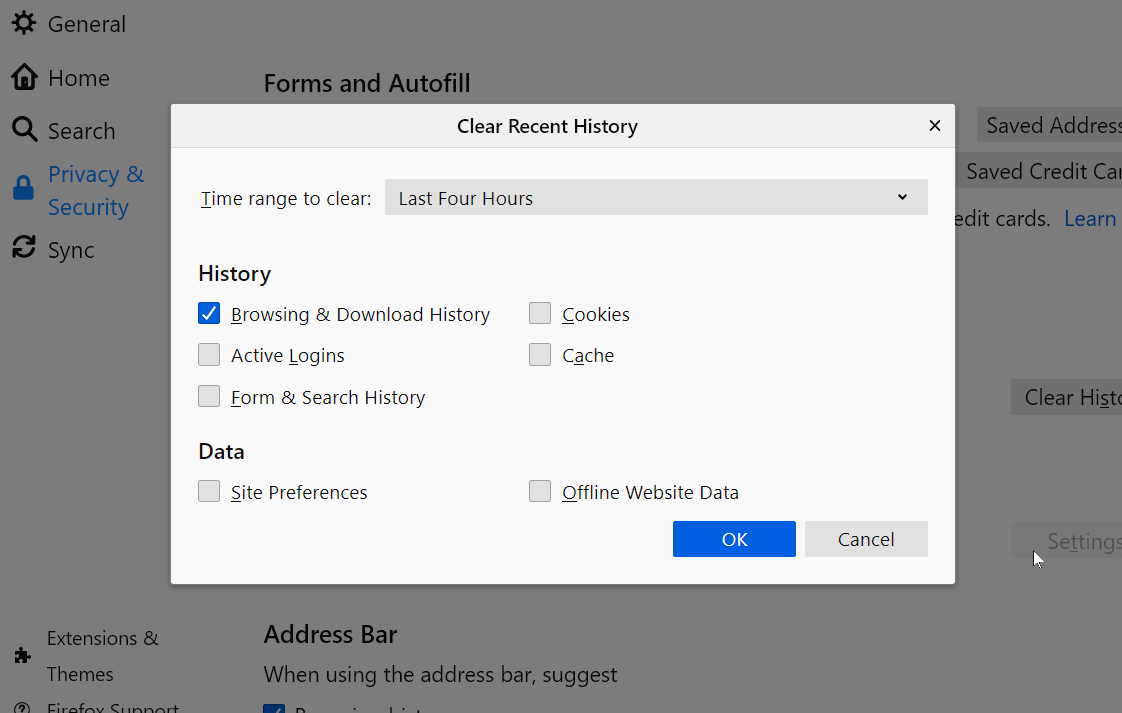
In the latest version of Firefox, go to the hamburger menu and section Options > Privacy & Security. Scroll down to get to History. Click the Clear History button. Click it to pick a time range to clear (one, two, four, or 24 hours—or everything), and tick cache to delete the cache.
To delete the cache on mobile is a little different depending on if you’re using an android phone or an Apple phone.
On iOS, tap the hamburger menu at the bottom right and select Settings. Scroll down to the Privacy section, and select Data Management. On the next screen you can turn off collection of browser history (or data caching, cookies, and offline website data) entirely. Click the Clear Private Data link at the bottom to clear all of the above.
On Android, Firefox uses the three-dot menu at upper right. Select History to see the list, and click CLEAR BROWSER HISTORY at the bottom to remove all settings.
Safari
Safari is Apple’s default browser, both on their desktops and mobiles.
Delete specific settings like the cache by going into Safari > Preferences > Privacy; you can then Manage website data via the button, which will let you remove the cache there.

To remove it from your iPhone or iPad, go to Settings > Safari > Clear History & Website Data. Doing this takes out the history, cookies, and other data.